STEP 01
Start the test
Choose a test size and start the network check.
Run a browser-based network speed check with a small download and upload test.
Speed Test is designed for a focused browser workflow. The main controls stay together so you can move from input to result without unnecessary screens. The exact process depends on the job: some tools ask for numbers, some use files or images, and others measure activity in the browser. Use the steps below as a practical guide and check the final result before you save, share, print or publish it.
Choose a test size and start the network check.
Let the browser measure download and upload transfer speed.
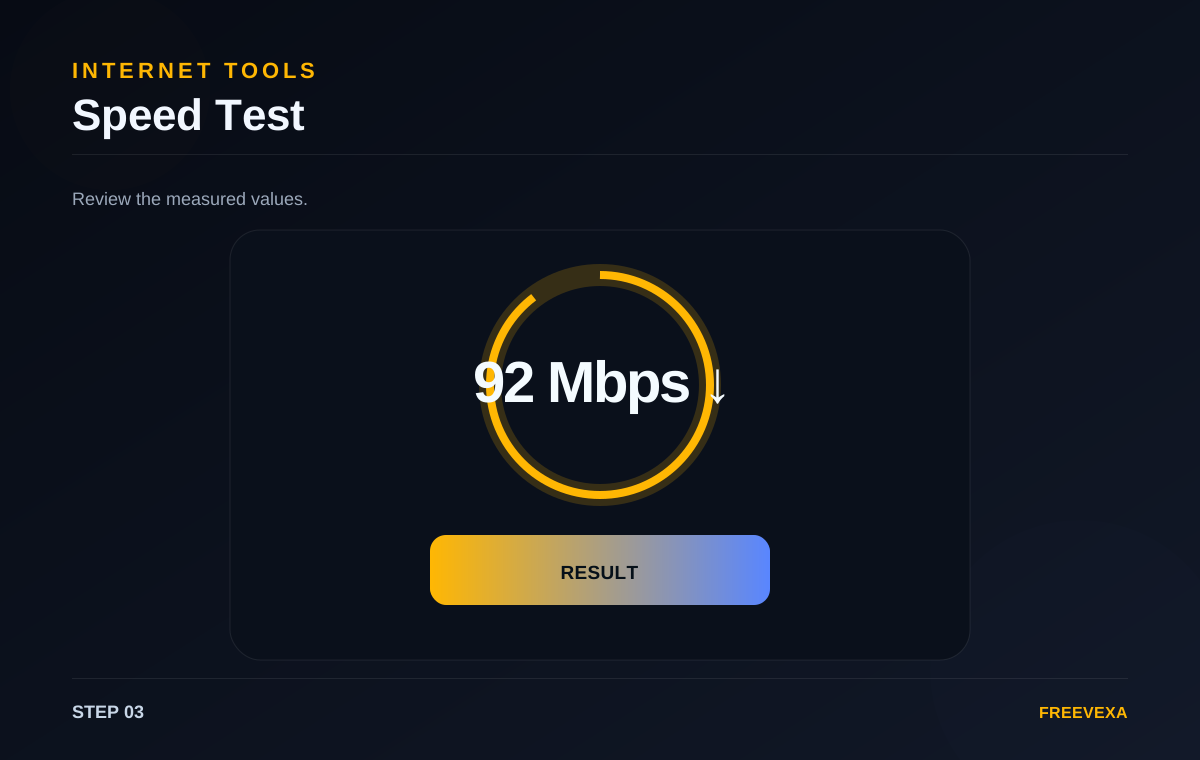
Read download, upload and test duration values.
Step 1. Choose the test size that fits your connection. A smaller test is faster for a quick check, while a larger test can provide a more stable estimate on faster connections.
Step 2. Start the test and keep other heavy network activity to a minimum. The browser downloads a test payload and measures transfer time, then attempts a matching upload measurement.
Step 3. Wait for both measurements to finish. Depending on your browser, network, firewall or connection provider, an upload step may be blocked or limited. The page shows a clear message when a measurement cannot run.
Step 4. Review download speed, upload speed and the test duration. Run the test again at different times if you want to compare changes across your connection.
Step 5. This is a browser-based estimate rather than a telecom-certified measurement. VPNs, Wi-Fi conditions, background downloads, server routing and device load can influence the numbers.
Useful tips. For a more repeatable result, test from the same device and location, pause large downloads and run several measurements instead of relying on one reading. Check your input before the final action, especially for dates, prices, file selections, tax rates, network tests and text. Repeating the process with the same settings can help you compare results more consistently.
Why use Freevexa? Freevexa provides a quick browser-side check without account creation. The interface keeps the measurement and the final numbers together so the result is easy to read. Across the tool collection, Freevexa keeps the interface consistent, puts the main action in a visible place and avoids forcing a separate account step for basic utilities. The goal is to make a useful result easy to reach while keeping each page focused on the task.
Best way to use the tool. Start with the smallest complete input, run the tool once, read the result, and then repeat only when you need a different scenario. This keeps the workflow clean and makes it easier to spot an incorrect value. For recurring tasks, save a copy of the final output when the information matters outside the browser.
What to check before using the result. Review the output before relying on it. File and image tools can depend on browser capabilities; network tools send test traffic to their measurement endpoint; and creative tools still require you to use content you have the right to use. Freevexa is a practical utility layer, not a replacement for official records, accounting systems, professional advice or certified measurement equipment.
Inputs, main action and result are kept together so the next step is easy to find.
Basic processing happens in the page. Features that need a network measurement or external library are clearly stated on the tool.
A consistent dark interface, responsive controls and direct result actions make the tool easy to reuse.